

If you’ve hit the training grind wall in MMA Life Simulator, there’s a faster route. I’m talking about editing the save files directly — no mods, no trainers, just a text editor and the right file path. This walkthrough shows you exactly where the game hides your stats and how to rewrite them in under five minutes.
Quick Answer
The save directory is C:\Users\(user name)\AppData\Roaming\Godot\app_userdata\MMASim\Saves. Open your save folder (e.g., 1), then:
- Player stats: Edit
Saves\1\Stats\hero.tres - Character stats (e.g., Nisha): Edit
Saves\1\Chars\Nisha.tres
Use a plain text editor like Atom, change the stat values, save the file, and launch the game. Changes apply immediately on startup.
Why I Edit Save Files Instead of Grinding
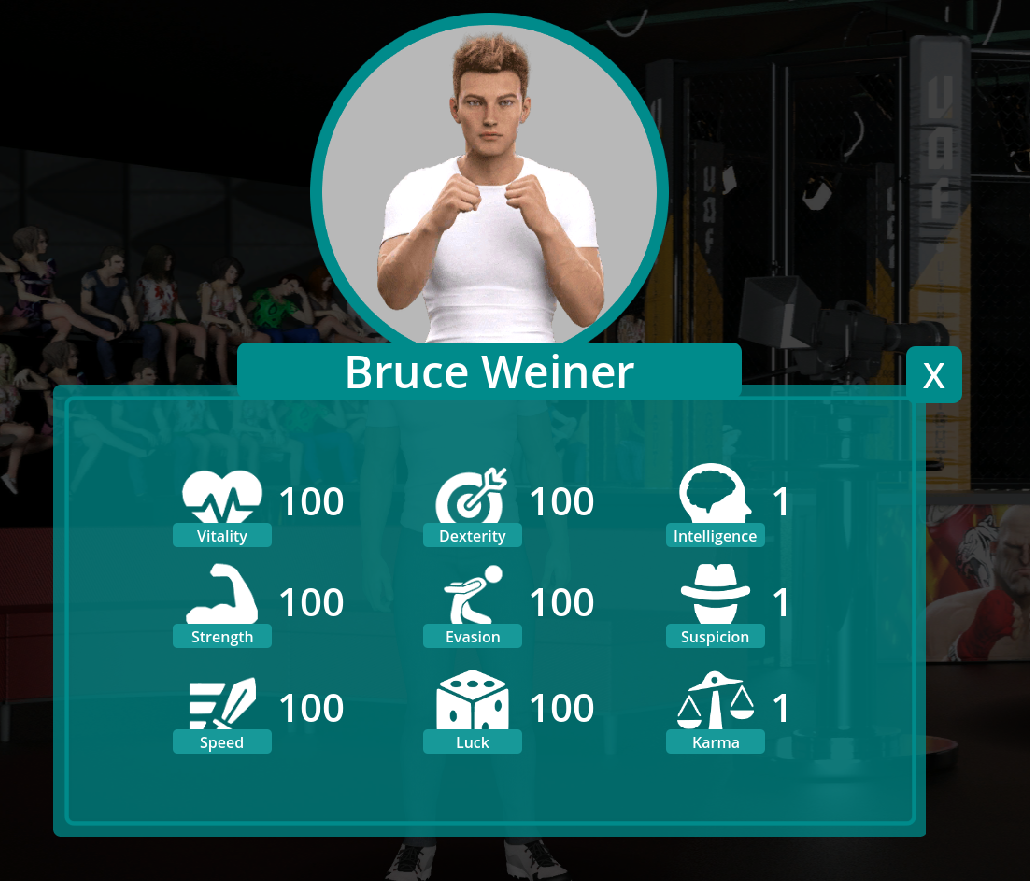
The core loop is solid, but stat progression eats time. When I want to test a build or skip the early grind, I go straight to the source files. The game stores everything in Godot’s .tres format, which is plain text — no encryption, no obfuscation. That makes manual editing the fastest, most reliable method I’ve found.
The Exact File Paths I Use
Before touching anything, I navigate to the root save directory:
C:\Users\(user name)\AppData\Roaming\Godot\app_userdata\MMASim\SavesEach save gets its own numbered folder (1, 2, etc.). Inside, the structure splits into two key subfolders:
| Folder | File to Edit | What It Controls |
|---|---|---|
Stats |
hero.tres |
Player attributes |
Chars |
Nisha.tres |
Character stats (e.g., Self Respect) |
I always confirm I’m in the right save folder before editing. Wrong file, wasted time.
Step-by-Step: Editing Player Stats
Here’s the exact sequence I follow:
- Navigate to
C:\Users\(user name)\AppData\Roaming\Godot\app_userdata\MMASim\Saves - Select your save folder (e.g.,
1) - Open the
Statssubfolder - Right-click
hero.tresand open it with a text editor like Atom - Locate the stat values you want to change
- Edit the numbers, then save the file
- Launch MMA Life Simulator — the new values are live
Tip: I use Atom specifically because it preserves the file’s formatting. Notepad can work, but it sometimes mangles line endings. Stick with a proper code editor.
Step-by-Step: Editing Character Stats
Character stats live in a separate folder. For example, if you want to raise Nisha’s Self Respect:
- Navigate to
C:\Users\(user name)\AppData\Roaming\Godot\app_userdata\MMASim\Saves\1\Chars - Open
Nisha.treswith Atom - Change the desired stat values
- Save the file and start the game
The process is identical to player stats — just a different file path.
Warning: Always back up your save files before editing. A single typo can corrupt a .tres file, and there’s no in-game undo. Copy the entire Saves folder to your desktop first.
What I Check Before Starting the Game
After saving my edits, I verify three things:
- The file extension is still
.tres— I never rename it - The values are numeric and within a reasonable range
- I edited the correct save folder (not a duplicate)
If the game doesn’t reflect the changes, the most likely culprit is editing the wrong file or the wrong save slot. Double-check the path, confirm the file, and relaunch.